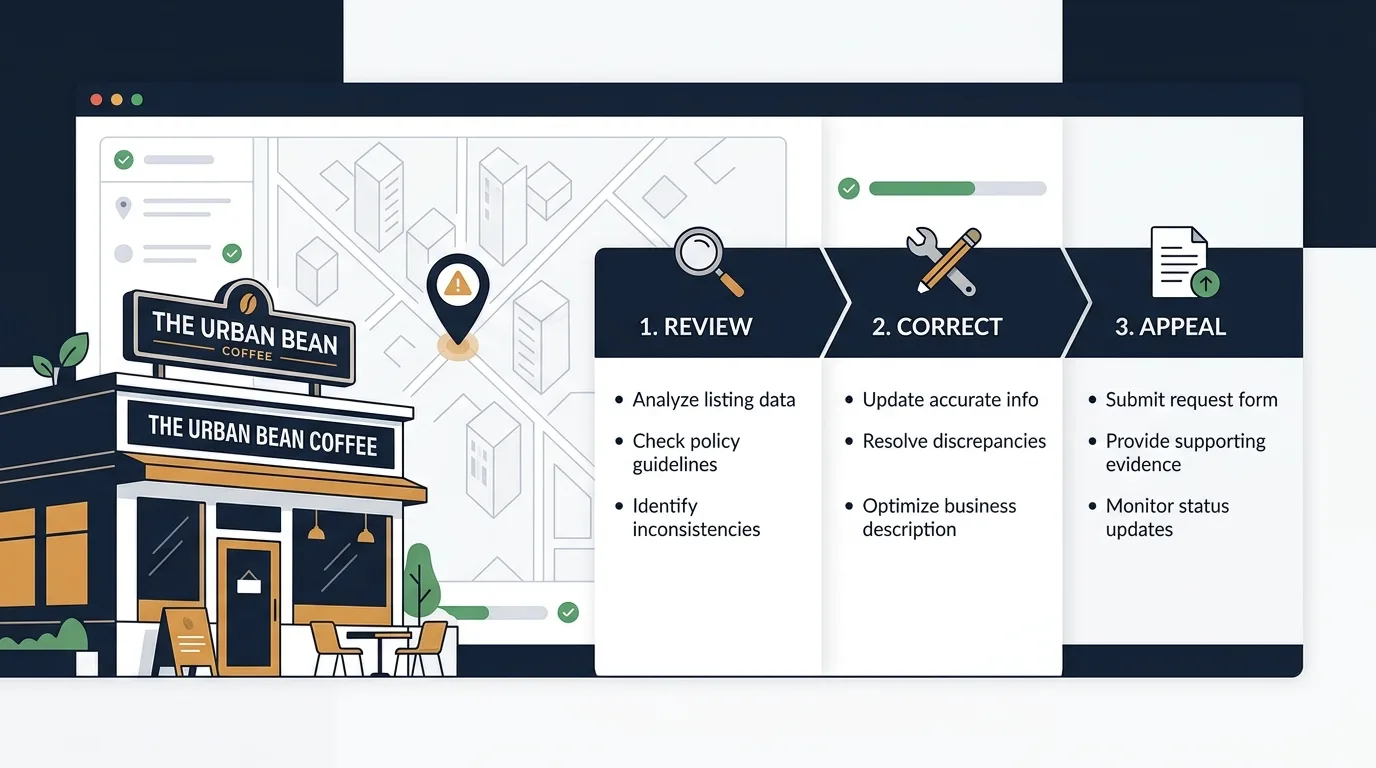
A Google Business Profile suspension rarely arrives at a convenient time.
One day, the business is visible on Search and Maps. The next, the owner cannot manage the listing, customers cannot find it as expected, or Google displays a warning that the profile has been restricted.
The natural reaction is to start changing fields, create another listing or submit an appeal immediately.
That is usually the wrong order.
A better approach is to slow down, identify what Google believes is wrong, bring the profile back into compliance and gather evidence before opening the appeal form.
That last point matters. Google gives you only 60 minutes to submit supporting evidence after opening the linked evidence form. It also advises against submitting multiple appeals while a decision is pending and says reviews may take up to five business days.
This guide walks through the process step by step.
Important: Mapifyer is not affiliated with Google, and no checklist can guarantee reinstatement. Google makes the final decision on every appeal.
What to do when your Google Business Profile is suspended
Here is the process in plain English:
- Do not create a replacement profile.
- Confirm which profile or account has been restricted.
- Review the policy named in Google's appeals tool.
- Correct any inaccurate or ineligible information.
- Gather documents that match the profile.
- Submit one clear, factual appeal.
- Attach your evidence within the 60-minute window.
- Wait for the decision before submitting anything else.
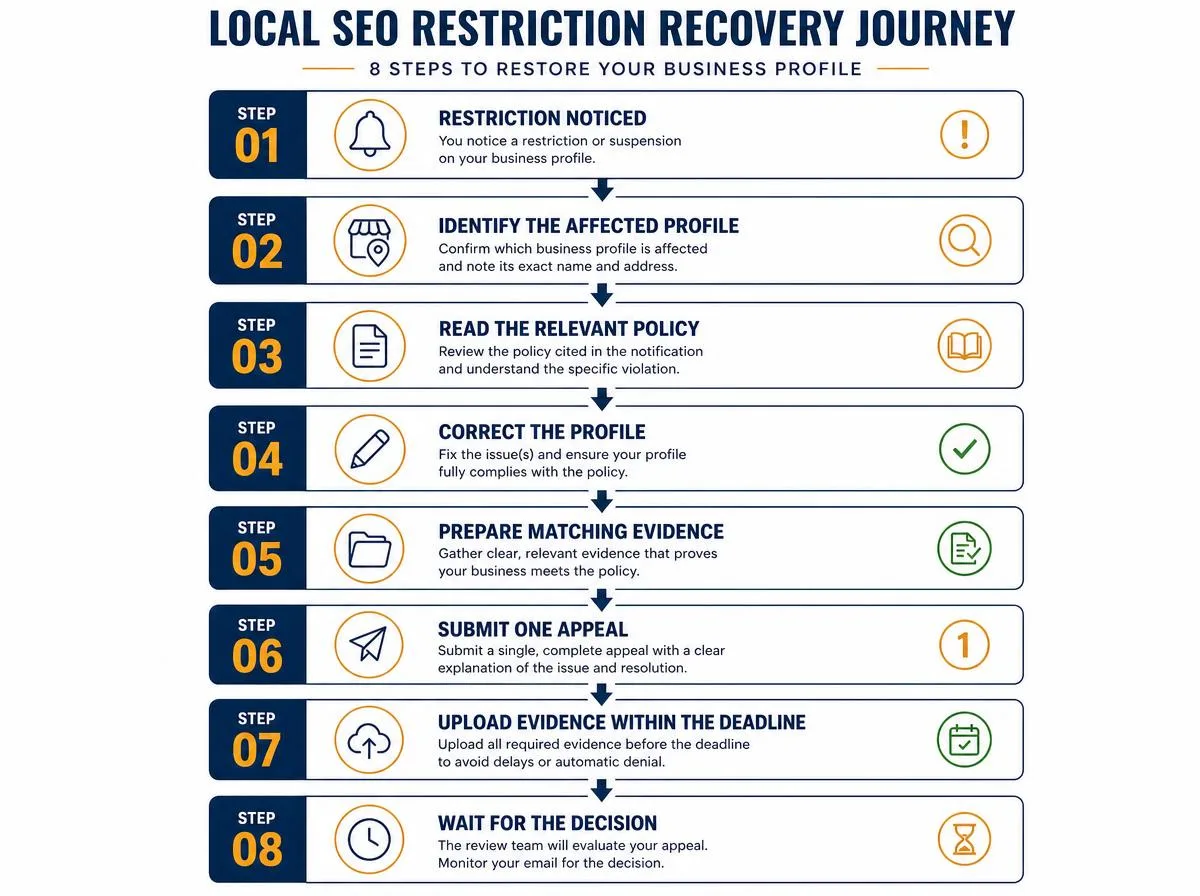
The appeal itself is not the hard part. The work you do before the appeal is what gives it a chance of succeeding.
What does a Google Business Profile suspension mean?
Google may suspend or disable a Business Profile when the profile, its content or the account managing it appears to violate Business Profile policies.
Restrictions can apply to one profile. They can also occur at account level. When Google restricts a merchant account for a pattern of policy violations, every Business Profile associated with that account may be suspended.
A restriction does not automatically mean the business is fake. It means Google is not currently satisfied that the profile is eligible, accurate or compliant.
The job of the appeal is therefore not to argue that the suspension is inconvenient. It is to demonstrate three things:
- The business is eligible for a Google Business Profile.
- The profile accurately represents the real business.
- Any policy problem has been corrected.
Before you appeal: stop changing the profile
Making a series of rushed edits can make it harder to understand the original problem.
Before touching the business name, address, category or ownership settings, collect the information already available:
- The email Google sent about the restriction
- The name of the affected profile
- The Google account managing it
- The current business name, address, phone number and website
- The profile ID, when available
- Screenshots of the restriction notice
- Any recent changes made before the suspension
Then open the official Business Profile appeals tool using the Google account associated with the listing.
The tool may show the restricted profile, the reason for Google's action and a link to the relevant policy. Read that policy before submitting anything.
Seven common reasons a Business Profile is suspended
Google does not publish a neat list saying, "Your profile was suspended because of item four." It does, however, publish detailed eligibility and representation rules.
Most suspension problems fall into one of the following areas.
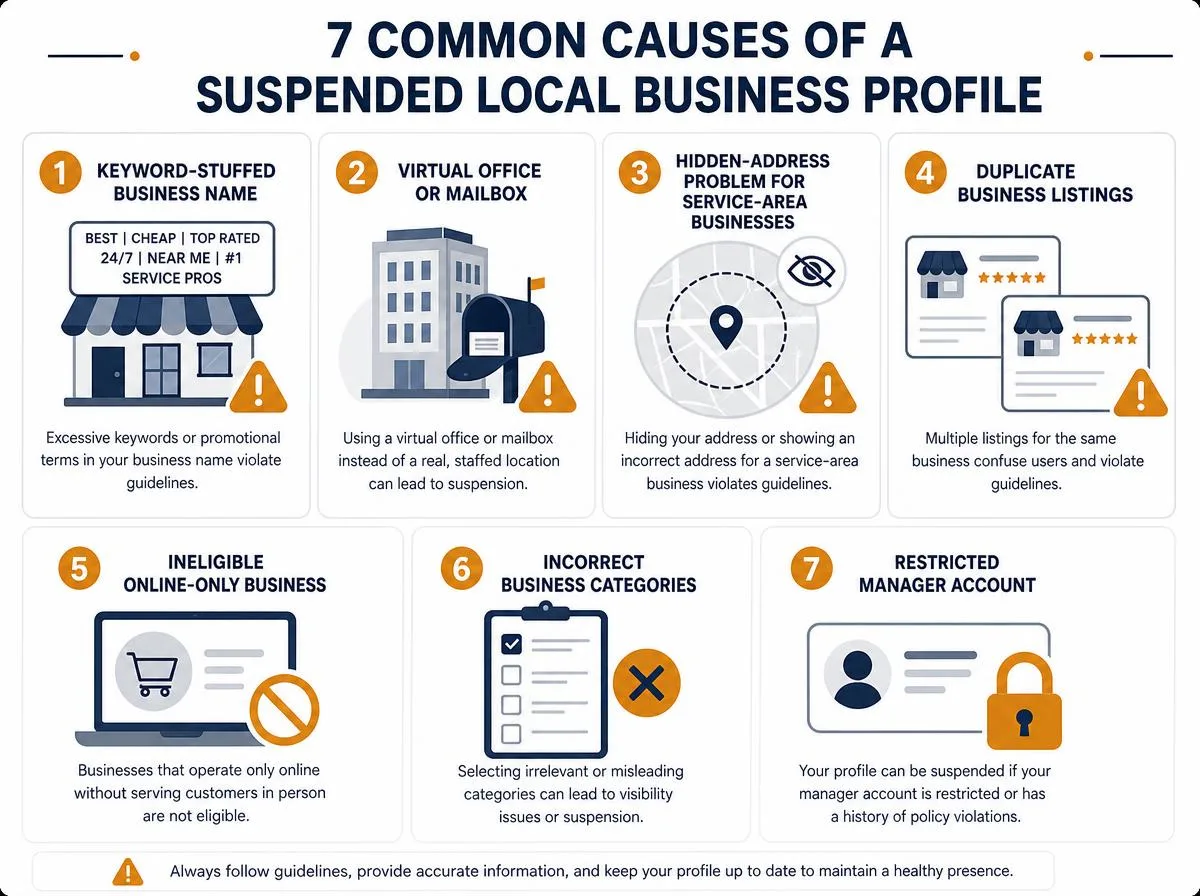
1. The business name contains extra keywords
The name on the profile should match the name customers see in the real world.
That means the name used on:
- Storefront signage
- The company website
- Business stationery
- Licences and registration documents
- Branded vehicles or uniforms, where relevant
A company legally known as Greenfield Plumbing Ltd should not call its profile Greenfield Plumbing | Emergency Boiler Repair London unless that entire phrase is genuinely the business's real-world name.
Google explicitly prohibits unnecessary information in the business-name field and warns that it can lead to suspension. Services, locations and marketing phrases belong elsewhere on the profile.
What to fix: Replace the keyword-heavy name with the business's documented, real-world name.
2. The address is not an eligible business location
P.O. boxes and remote mailboxes are not acceptable business addresses.
A virtual office is also ineligible when the business does not actually operate there. A co-working location may qualify only when the business has clear signage, receives customers there during its stated hours and is staffed by its own team during those hours.
This is a frequent source of trouble for:
- Service-area businesses
- Remote agencies
- Businesses using registered-office services
- Companies using mail-forwarding addresses
- Operators renting an address purely to rank in another city
What to fix: Use the genuine operating location and follow the correct storefront or service-area setup.
3. A service-area business is showing an address customers cannot visit
A plumber, cleaner, mobile mechanic or similar business may operate from a home or private base while travelling to customers.
That business can still be eligible. But when customers are not served at the address, Google says the address should be hidden and the profile should use service areas instead. A service-area business should generally have one profile for the area it serves.
What to fix: Hide the address when customers cannot visit it and configure accurate service areas. Our guide to local SEO for multi-city service businesses covers how to structure coverage without creating ineligible listings.
4. There is more than one profile for the same business
Google permits one Business Profile per business location, with limited exceptions for distinct departments and eligible practitioners.
Multiple profiles for the same company can be treated as duplicates and may disappear from Search or Maps. Google advises owners to resolve or merge duplicates rather than create additional listings.
What to fix: Identify the legitimate profile. Request ownership, remove an accidental duplicate from your account or follow Google's process for requesting a merge.
Do not delete profiles blindly. Reviews, managers and owner-created content can be affected depending on the action taken.
5. The business is not eligible for a profile
A business generally needs to make in-person contact with customers during its stated hours.
Google lists online-only businesses, lead-generation companies and certain rental-property listings among the types that are not eligible.
A website, phone number and registered company are not enough on their own. The business must fit Google's eligibility rules.
What to fix: Confirm that the business genuinely serves customers in person and that the profile represents that eligible operation.
6. The categories or profile details do not reflect the real business
Categories should describe the core business, not every service the company would like to rank for.
Google recommends using the fewest categories needed to describe the overall business. It also advises against choosing categories simply as keywords or copying categories from nearby competitors.
The same principle applies to the phone number, website, opening hours and service area: each should represent the actual location. Our complete guide to Google Business Profile optimization walks through each field in order.
What to fix: Remove irrelevant categories and make every major field consistent with the real business.
7. The managing Google account has been restricted
Sometimes the listing is not the only problem.
Google states that restrictions on the managing account, including restrictions connected to other Google products, can affect Business Profile access. A pattern of Business Profile policy violations can also result in account-level restrictions and suspension of associated profiles.
What to fix: Determine whether the warning relates to the individual profile or the account managing multiple profiles. Account-level issues must be resolved before associated profile content can be restored.
The evidence to prepare before opening the appeal
Do not open the evidence form and then start hunting for paperwork.
Google says the evidence window begins when the linked form is opened. You have 60 minutes to submit it. If the deadline passes, the evidence will not be attached to the appeal.
Prepare the files first.
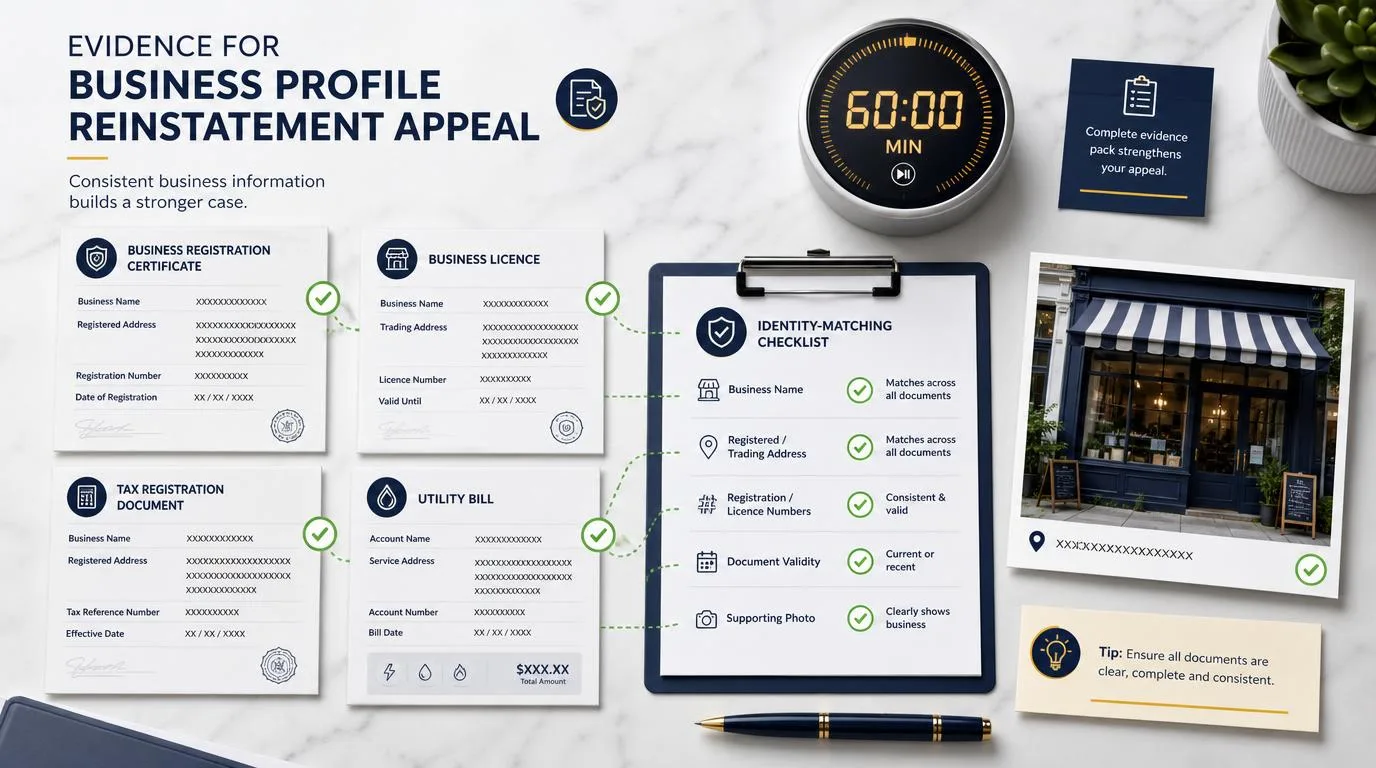
Google lists the following examples of useful evidence:
- Official business registration
- Business licence
- Tax certificates
- Utility bills, including electricity, phone, water or internet bills
The documents should show information that matches the profile, particularly the business name and address.
Depending on the issue, also prepare real-world evidence that demonstrates compliance with the relevant policy:
- Clear photographs of permanent storefront signage
- Photographs showing the entrance and surrounding location
- Evidence that the office is staffed during published hours
- Branded vehicles for a service-area business
- A website displaying the same business name and contact details
- Proof that separate businesses at one address are genuinely distinct
Do not alter documents or manufacture supporting material. A mismatch is a reason to correct the profile, not edit the evidence.
Evidence checklist
Before you appeal, confirm:
- The legal business name matches the profile.
- The address on the evidence matches the profile, when an address is displayed.
- The phone number reaches the business.
- The website represents the same business and location.
- The business category matches the actual operation.
- The opening hours are genuine.
- The signage supports any publicly displayed storefront address.
- A service-area business has hidden an address where customers are not served.
- Duplicate profiles have been identified.
- All files are readable and ready to upload.
If you want a structured way to check every field before submitting, work through our Google Business Profile audit checklist.
How to submit a Google Business Profile appeal
Once the profile is compliant and the evidence is ready:
Step 1: Sign in with the correct account
Use the Google account associated with the suspended or disabled profile.
Step 2: Open the Business Profile appeals tool
Select the affected profile. Google's tool may show the moderation decision, the reason for the restriction and the policy connected to it.
Step 3: Select the decision you want to appeal
Read the policy again. Confirm that any relevant issue has actually been corrected.
Step 4: Submit the appeal
Keep the explanation concise. Avoid anger, speculation or a long history of the business.
The reviewer needs to know:
- What the business is
- Why it is eligible
- What was inaccurate
- What you corrected
- Which evidence supports the profile
Step 5: Add the supporting evidence
After submitting the appeal, Google may give you the option to open a separate evidence form.
Once opened, the 60-minute deadline applies. Upload the prepared documents and submit the form before the window closes.
Step 6: Wait for Google's decision
Google says appeal reviews can take up to five business days.
Do not submit repeated appeals for the same issue while the first one is under review. Do not create another profile for the same business during the process.
A simple appeal statement template
Use this as a framework, not a script to copy without editing:
We reviewed the Google Business Profile policy referenced in the appeals tool and corrected the affected information.
The profile represents [legal or established business name], an eligible [storefront/service-area/hybrid] business serving customers in person.
We corrected [briefly describe the issue] so the profile now matches the business's real-world name, location and operations.
The attached [registration/licence/tax document/utility bill/signage evidence] supports the business name and address shown on the profile.
We respectfully request a review and reinstatement of the profile.
Specific is better than dramatic.
"We removed the service keywords from the business name and changed the profile to a service-area business because customers are not served at our home address" is useful.
"We did nothing wrong and need the listing back immediately" is not.
What not to do after submitting the appeal
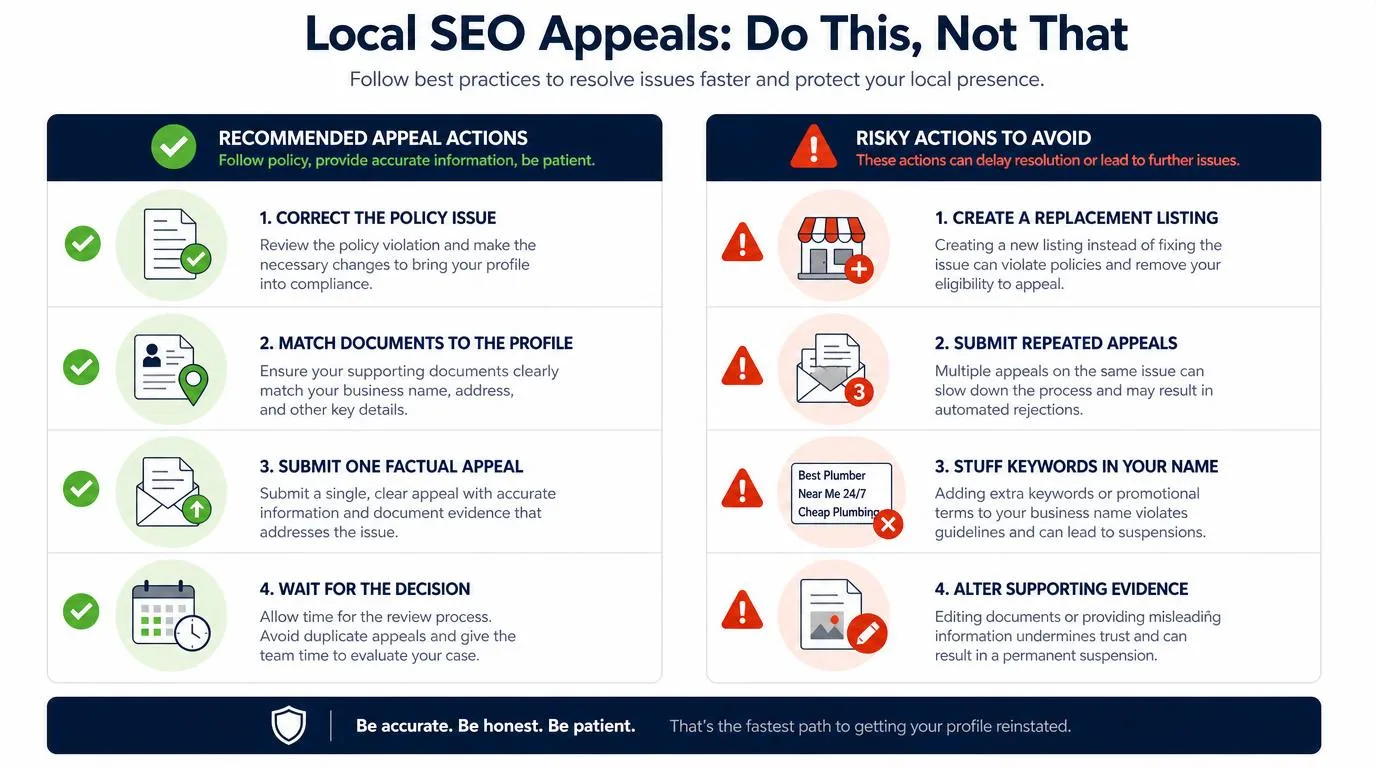
While the appeal is pending:
- Do not create a replacement listing.
- Do not submit multiple appeals for the same restriction.
- Do not keep changing the business name, address or category.
- Do not upload altered or inconsistent documents.
- Do not ask unrelated Google accounts to claim the same business.
- Do not remove the affected profile from your account without understanding the consequences.
Creating another listing can introduce a duplicate-profile problem on top of the original suspension. Google specifically instructs businesses not to create a new profile for the same business while an appeal is under review.
What to do if the appeal is denied
A denied appeal is frustrating, but it does not make a duplicate listing the answer.
Re-read:
- The policy linked in the appeals tool
- The decision email
- Every field on the profile
- Every piece of submitted evidence
Look for mismatches such as:
- A trading name on the profile but a different legal name on every document
- A storefront address with no permanent signage
- A service business displaying a residential address
- Several profiles for one business
- A website showing a different phone number or address
- Categories that describe services rather than the core business
- An account restriction affecting multiple listings
When the appeals tool says there is no eligible decision to appeal, Google directs businesses to its support options. Google also advises replying to the support email when the initial response has not resolved the issue.
Correct the underlying problem before pursuing another review.
After reinstatement: check more than whether the listing is live
Reinstatement is the first checkpoint, not the final one.
Review the profile again:
- Is the business name accurate?
- Is the address shown only when customers can visit?
- Are service areas realistic?
- Is there only one profile for the business?
- Are the primary and secondary categories appropriate?
- Do the website, phone number and hours match the business?
- Are the correct owners and managers present?
Then record a new visibility baseline.
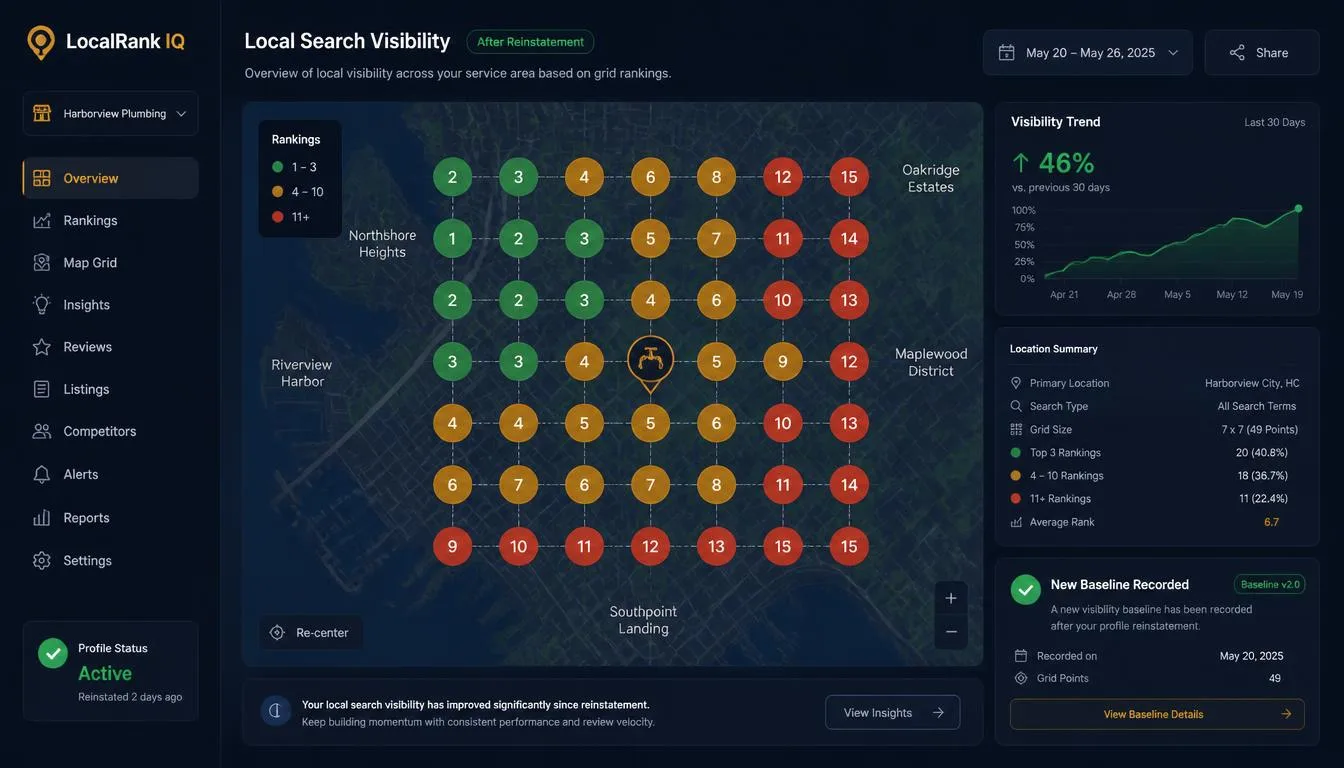
A local rank scan across the whole city can show where the business appears across its market after reinstatement. This gives the owner or agency a clean reference point for future optimization instead of relying on a single search performed from one location.
Mapifyer can scan local visibility across a geographic grid, compare ranking coverage and highlight areas where the business remains weak.
How to reduce the risk of another suspension
No profile is immune from future checks, but disciplined management reduces avoidable risk.
Use this operating checklist:
- Keep the business name consistent with real-world branding.
- Use a genuine, eligible location.
- Hide the address for a service-area business that does not receive customers there.
- Maintain permanent signage for a displayed storefront.
- Avoid unnecessary duplicate profiles.
- Use categories to describe the business, not to stuff keywords.
- Keep the website, phone number and address consistent.
- Give profile access only to trusted owners and managers.
- Record major changes and preserve the evidence behind them.
- Audit agency-managed profiles regularly.
The safest profile is not the one with the most keywords. It is the one that is easiest to verify.
Final takeaway
A strong reinstatement request is built before the appeal button is pressed.
Correct the profile. Match it to the real business. Prepare the evidence. Explain the correction plainly. Then submit one careful appeal and allow Google time to review it.
Rushing usually creates more problems. Accuracy gives the reviewer something they can approve.
Frequently Asked Questions
How long does a Google Business Profile appeal take?
Google says appeal reviews and decisions can take up to five business days. Avoid submitting another appeal for the same issue while the first is pending.
Should I create a new profile after a suspension?
No. Google specifically advises businesses not to create a new Business Profile for the same business while an appeal is under review. A new listing can also create a duplicate-profile problem.
What documents can I use for a reinstatement appeal?
Google lists official registration, business licences, tax certificates and utility bills as examples. The name and address on the evidence should match the profile being appealed.
Can I show my home address on a service-area Business Profile?
When customers are not served at that address, Google says the address should be removed from public view and the business should use service areas instead.
Can two businesses use the same address?
They can when they are genuinely distinct, individually eligible businesses. Google may require visible differences such as permanent signage to establish that they are separate operations.
Can an agency submit an appeal for a client?
The appeal must be opened through an account associated with the affected profile. Agencies should coordinate closely with the business owner because the strongest supporting documents normally belong to the business itself. The submitted information must accurately represent the business and come from an authorized representative.